 StayMinimal
Guides › iPhone
How to turn your iPhone into a dumb phone
iOS 26 · Updated 27 October 2026 · 8 min read
A dumb phone sounds great until you need Maps, your bank, a boarding pass or a photo of your kid. The good news: you don't need a second phone. With a few settings and one quiet Home Screen, your iPhone can feel like a dumb phone while it keeps the tools you actually need.

The short version
- Choose your 6 to 10 essential apps.
- Keep one Home Screen page and move everything else to the App Library.
- Use a plain wallpaper, hide the Search button and clear the Dock.
- Turn off notifications from everything that isn't a person.
- Turn on grayscale, with a triple-click to switch it off.
- Pause the apps that pull you in, so they can't open at all.
- Make nights boring: only essentials after bedtime.
1. Choose your essentials
Write down the apps you'd keep if your phone could only do the useful things. Most people end up with something like this:
- Talk: Phone, Messages, WhatsApp
- Get around: Maps, a ride or transit app
- Life admin: your bank or UPI app, Calendar, Wallet
- Make things: Camera, Notes, Music or a podcast app
Everything else (social media, short video, news, games, shopping) is what you're taking off the main stage. You're not deleting anything. You're making it a deliberate choice instead of a reflex.
2. Keep one Home Screen page
Most of the pull comes from the Home Screen itself: colourful icons, red badges and a swipe that always lands somewhere interesting.
- Remove app icons: press and hold an app, tap Remove App, then Remove from Home Screen. It stays in the App Library (swipe left past your last page).
- Hide whole pages: press and hold the Home Screen, tap Edit, then Edit Pages, and untick every page except one.
- Stop new clutter: Settings › Home Screen & App Library › Newly Downloaded Apps › App Library Only.
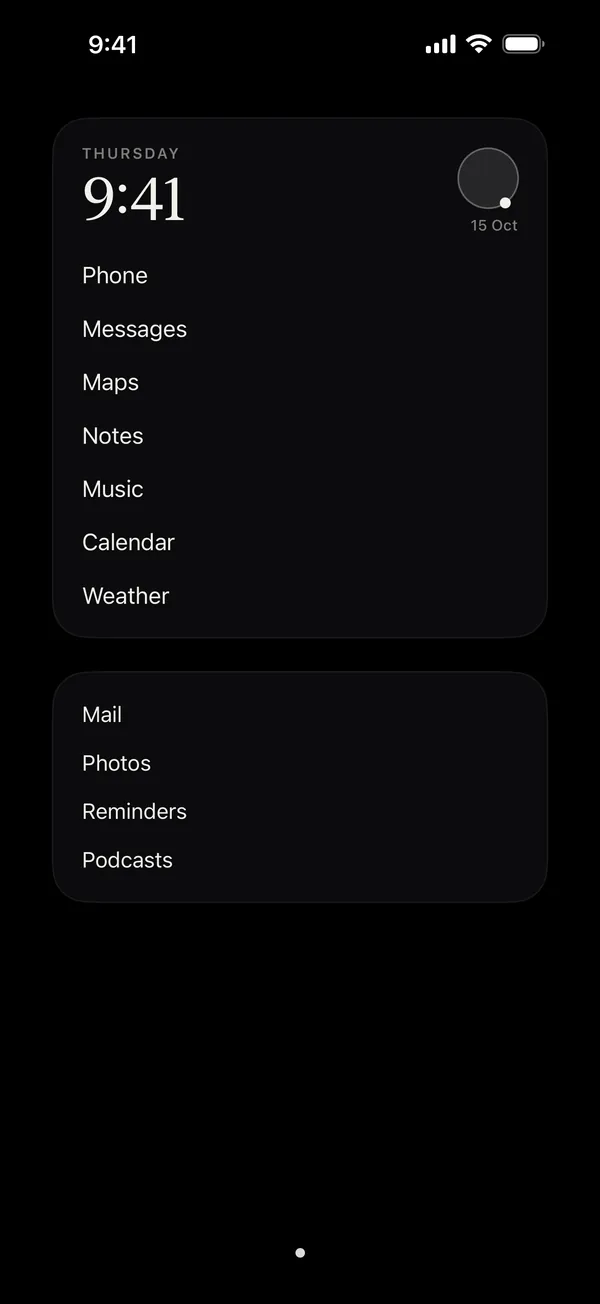
For the cleanest look, replace icons with a text list. StayMinimal's Minimal home widget shows a clock and your essentials as plain words, which is the closest an iPhone gets to a classic dumb phone screen.
3. Plain wallpaper, no Search button, empty Dock
- Wallpaper: pick plain black or a soft solid colour. Press and hold the Home Screen, tap Edit › Edit Wallpaper, then + to add one.
- Search button: the Search pill under your icons opens Spotlight and app suggestions. Turn it off in Settings › Home Screen & App Library › Show on Home Screen.
- Dock: drag the Dock icons off. An empty Dock disappears completely. Or keep just Phone.
- Icons: if you keep a few icons, Edit › Customize › Dark or Tinted makes them far less loud.
4. Only people can interrupt you
A dumb phone only rings for calls and texts. Copy that rule.
- Open Settings › Notifications and turn off Allow Notifications for every app that isn't a person or something urgent, like your bank's security alerts.
- For apps you want to check but not hear from, use Scheduled Summary (Settings › Notifications › Scheduled Summary) and get them once or twice a day.
- Set Settings › Notifications › Display As to Count, so the Lock Screen shows a number instead of a stream of previews.
5. Turn on grayscale
Colour is a big part of why feeds feel rewarding. Grey makes them strangely dull, which is the point.
- Settings › Accessibility › Display & Text Size › Color Filters › turn on, then choose Grayscale.
- Add a shortcut: Settings › Accessibility › Accessibility Shortcut › Color Filters. Now a triple-click of the side button switches colour back for photos or maps.
6. Pause the apps that pull you in
Steps 1 to 5 make the phone calmer. This step makes it a dumb phone, because the distracting apps can't open at all.
The free way, with Screen Time: Settings › Screen Time › App Limits › Add Limit, choose Social or specific apps, and set a short daily limit. It works, but the limit screen has an Ignore Limit button that takes one tap, so most people learn to tap through it. A Screen Time passcode that someone else sets helps.
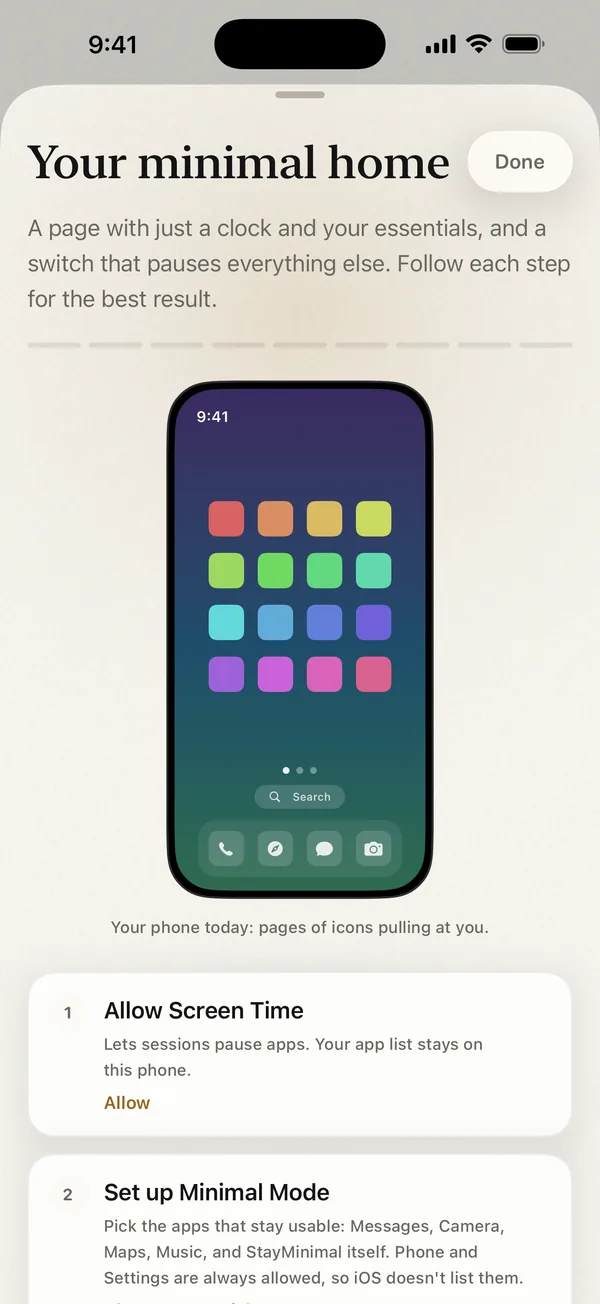
The one-switch way, with StayMinimal: choose your essentials once, then turn on Minimal Mode. Everything except your essentials pauses until you turn it off. Phone and Settings always work. Open a paused app and you get a calm screen and a moment to change your mind, instead of the feed.
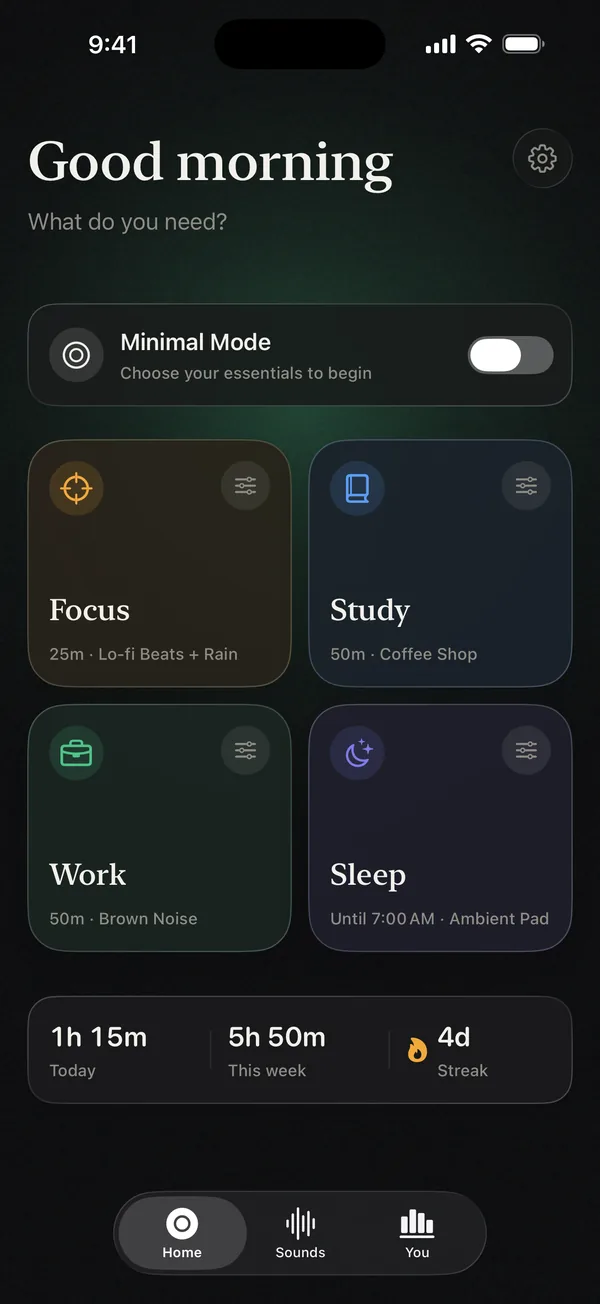
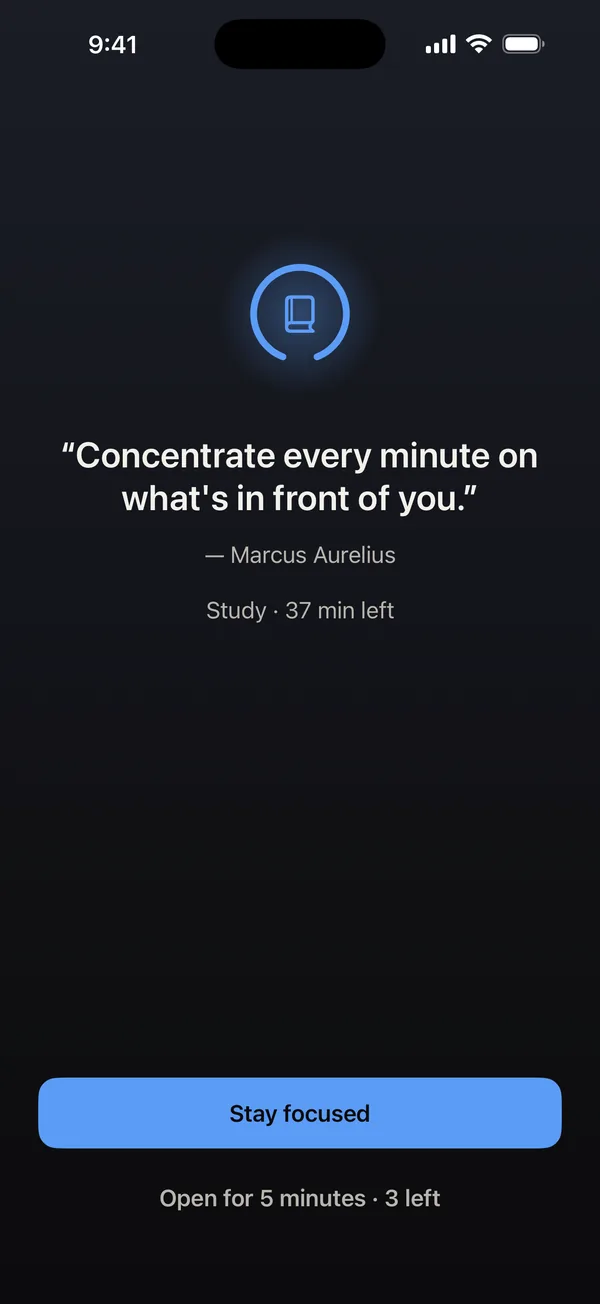
Not ready for all day? Start with a timed session instead. Focus, Study and Work pause your distracting apps for 25 to 50 minutes, and you can even play rain or café sounds while you work.
7. Make nights boring
Late-night scrolling is where most lost hours go. Choose a bedtime and let the phone go quiet on its own.
- Built in: Settings › Screen Time › Downtime, with a schedule and only your essentials under Always Allowed.
- With StayMinimal: Sleep starts every night at your bedtime. Only your Sleep essentials work until morning, a calm sound can fade you out, and a wake alarm rings at the end.
What still works?
| You can still | How |
|---|---|
| Call and text | Phone always works. Keep Messages and WhatsApp as essentials. |
| Navigate | Keep Maps as an essential. |
| Pay and bank | Keep Wallet and your bank or UPI app. |
| Take photos | Keep Camera. Grayscale is a triple-click away. |
| Get alarms | Alarms ring as normal, even with apps paused. |
| Use any other app | Turn Minimal Mode off, or open it from the App Library when nothing is paused. |
Want the one-tap version?
StayMinimal puts all of this behind one switch: a text-only Home Screen, paused apps, focus sessions, calm sounds and Sleep. It collects no data. Your app list stays on your iPhone. Free for 7 days, no card needed.

 Scan with your iPhone camera to download
StayMinimal is for iPhone only. There's no Android version yet.
Questions
Do I need to jailbreak or reset my iPhone?
No. Everything here uses normal iOS settings and Apple's Screen Time. You can undo any step in a minute.
Is this better than buying a dumb phone?
For most people, yes. A separate dumb phone means carrying two devices or losing Maps, banking, boarding passes and good photos. A minimal iPhone gives you the calm without giving those up. If you still want a real break, try a full Minimal Mode weekend first.
Can I still get WhatsApp messages?
Yes. Keep WhatsApp in your essentials and leave its notifications on. Only the apps you didn't choose are paused.
Will I miss urgent calls?
No. Phone is never paused, and calls ring as usual. If you also use an iPhone Focus, add your important people to its allowed list.
How long until it feels normal?
Most people reach for the old apps out of habit for the first few days. By the end of the first week, the quiet Home Screen usually feels like a relief rather than a restriction.
More help: StayMinimal support · What StayMinimal does